_800x320a.png)
The Student Portal Guide
Your complete guide to the Student Portal — log in, follow the Course Feed, submit assignments, download documents and keep track of your schedule, events and invoices.
Your complete guide to the Student Portal — log in, follow the Course Feed, submit assignments, download documents and keep track of your schedule, events and invoices.
Everything described in this guide lives in the Student Portal — your personal Alliance Française Auckland space online. Here's how to log in:
Go to alliance-francaise.co.nz/af/students/ — the af | MyPortal login page — or click the portal link on our website.
In the Welcome box, type the e-mail address you registered with and your password, then click Login.
Click Lost Password under the Login button and follow the link in the email we send you to set a new one.
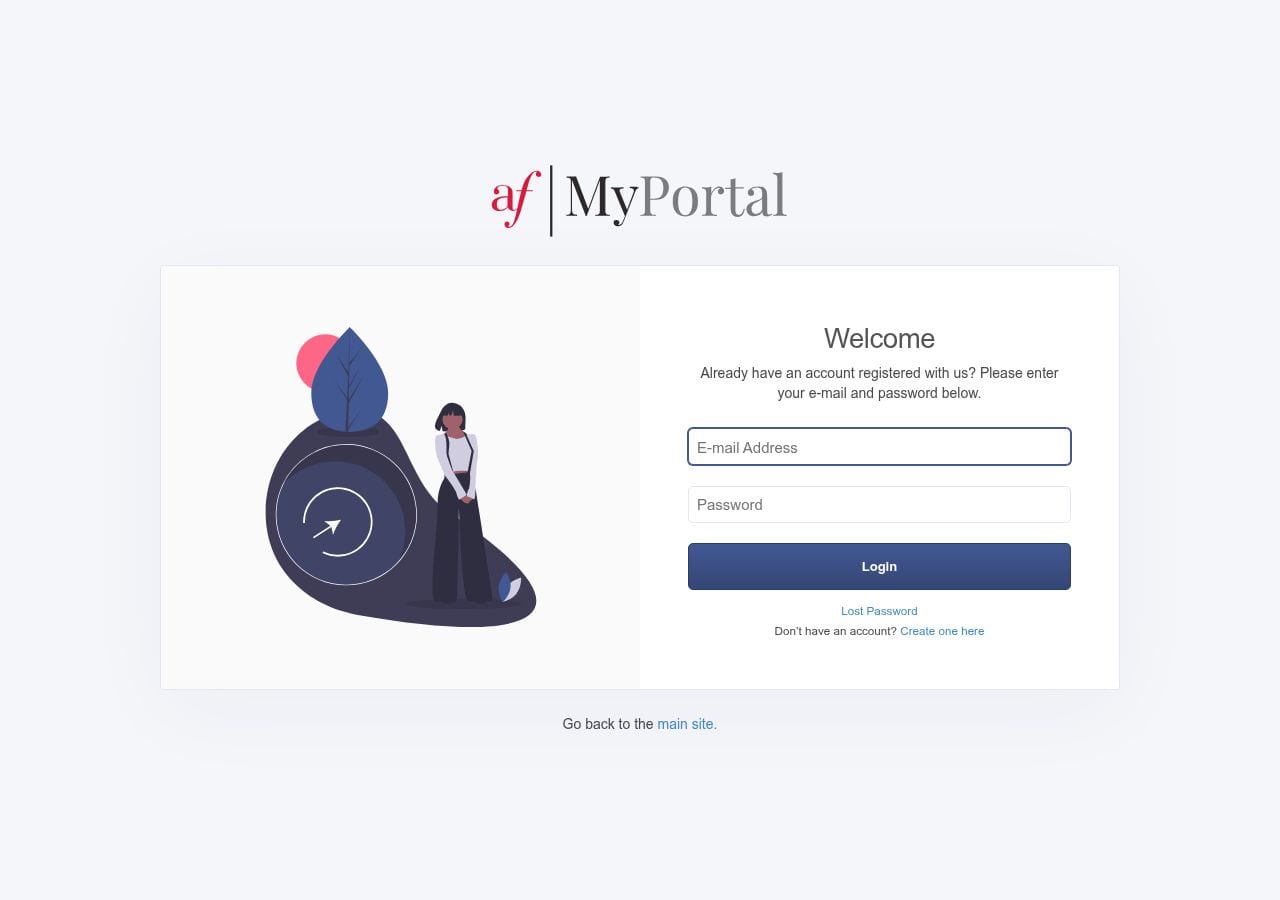
The af | MyPortal login page — enter your e-mail address and password, then click Login
You can also click the portal image on the Student Portal page and sign in with your Alliance Française Auckland login details.
Once you're logged in, everything for your studies is only a click away. Here's what the portal actually looks like, and what each section is for:
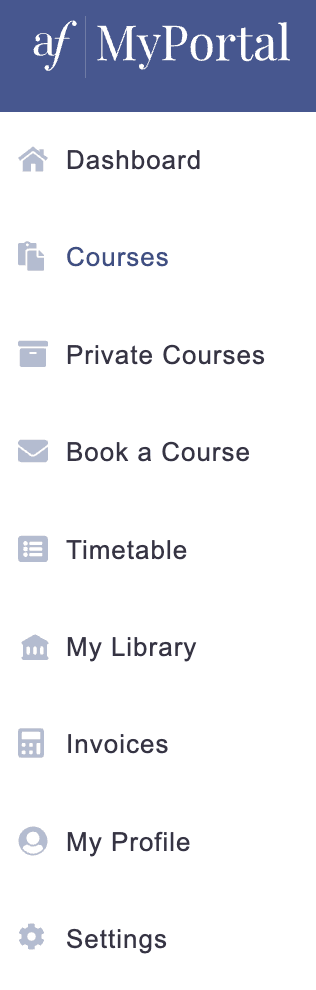
The af | MyPortal menu — on desktop and mobile
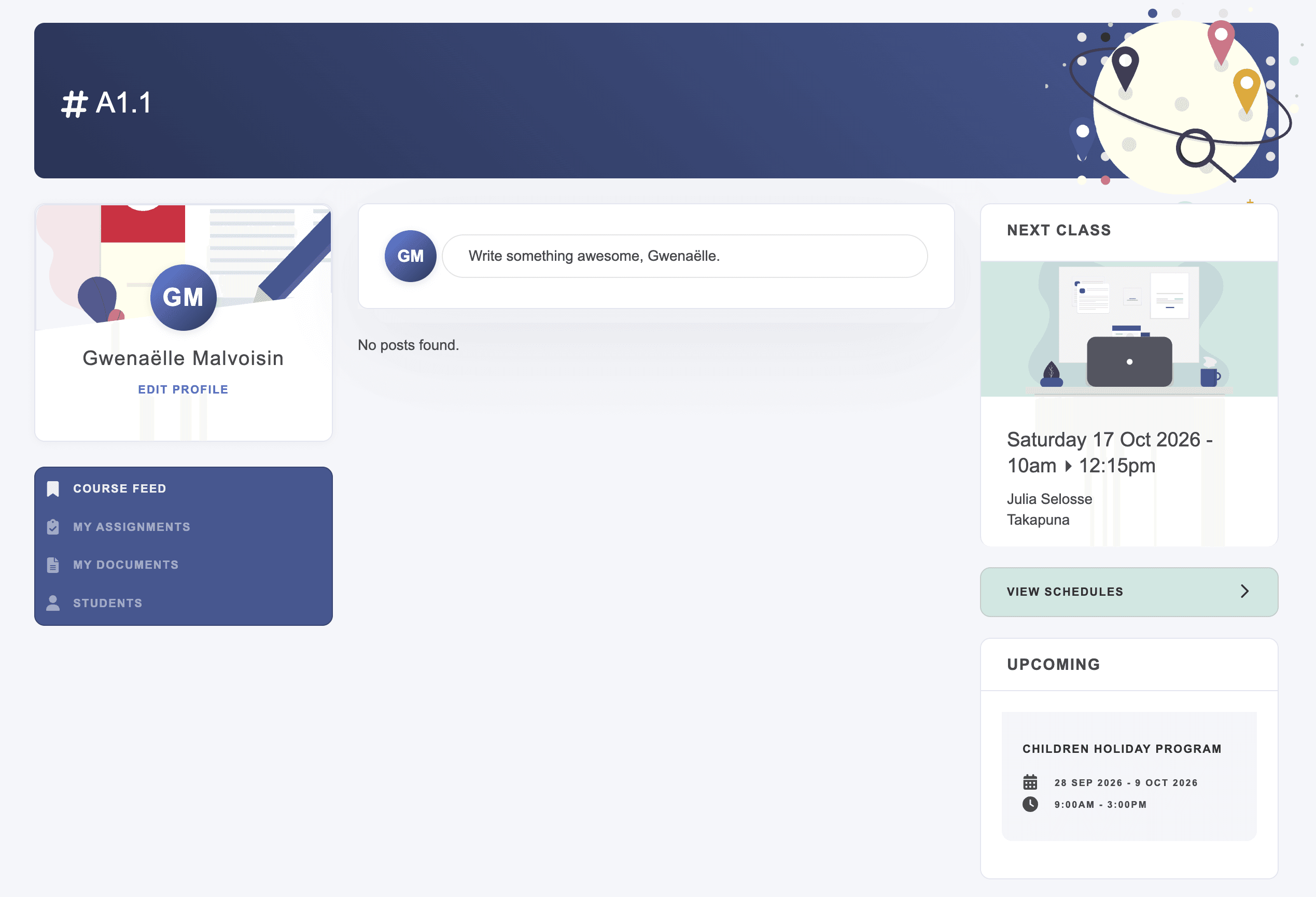
Your course dashboard — the Course Feed, your profile, your next class and upcoming events
Your teacher's posts: lesson summaries, homework reminders, class documents and announcements — newest first.
Your written homework — your Production écrite tasks — with instructions and due dates. Upload your work online and see your teacher's feedback and results.
Your course curriculum, plus any extra documents your teacher adds — available to download at any time, all term long.
Your next class at a glance on the dashboard — day, time, teacher and location — plus the full Timetable and « View Schedules » for the term.
The « Upcoming » panel on your dashboard shows cultural events, holiday programs and workshops — see what's coming up and book your place.
Your course fees, invoices and payment history under Invoices in the menu, with receipts you can download whenever you need them.
Stay up to date on AF Auckland news, diplomas, enrolments and special events.
Enrol in your next course easily, right from the portal — no need to start over on the website.
Update your personal details and preferences anytime from My Profile in the menu.
When your teacher publishes a post, they can choose whether students also receive an email notification. Either way, the post always appears in the course feed — the email is simply an extra reminder sent to your inbox.
If you receive a Course Feed email, don't ignore it — your teacher usually sends notifications for important posts.
The email is a summary — open the Course Feed to read the full post, view photos and download attachments.
Missed a class? Everything you missed is in the feed: lesson summary, homework and resources. Catch up before the next lesson.
Your Production écrite — your written production tasks — appear in two places: they will be posted on the Course Feed, and they are always available under « My Assignments » in the menu on the left of your course dashboard:
Open the Assignments tab to see each homework with its title, instructions and due date.
Upload your work online directly from the assignment — a file, a document, a photo… no need to print anything.
Once your teacher has corrected your work, you'll see their comment and feedback on the same assignment page.
💡 Good to know: your feedback are private — only you can see them. General instructions for the whole class go in the Course Feed; your individual submissions happen in Assignments.
If you're enrolled in more than one course, each course has its own feed — always check the course name at the top of the page to make sure you're reading the right class. And if you miss a lesson, the feed is the first place to catch up on what you missed.